UA-208572229-1 G-XLJDE19NX2April 2020 – Page 3

This is the Fastest and Easiest Way to convert Youtube to Mp3 in 2020

youtube to mp3

In this article, we will show you how easy and fast it is to convert YouTube to mp3 format without any hassle.

Mp3 is a file extension and compression method that utilizes the MPEG standard to reduce the size, often by a factor of 12

So to convert Youtube to mp3 just following the steps below:

  1. Go to youtube.com and search the music you will like to convert.

2. After selecting the music you want to convert to mp3, open another browser instance to Google search read more

What is an ai file and how can I open it easily in Coreldraw and others?

ai file

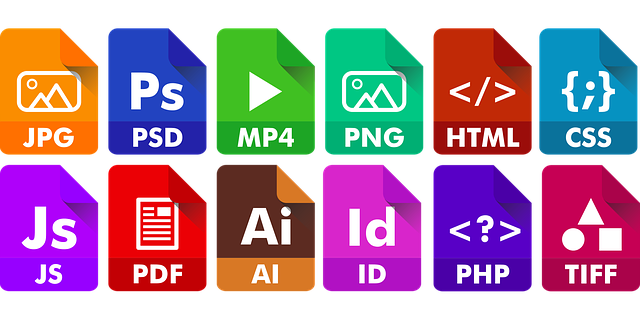
ai file is a file extension which stands for adobe illustrator.

It is a file created by the vector graphics software called adobe illustrator.

Adobe Illustrator is a professional drawing and design application, and saves drawings in a vector graphics format with the .ai file extension.

The content of the file can be used widely because the graphics retain their details at the maximum zoom level. read more

How to Use Google Classroom 2021 – Tutorial for Beginners

Google Classroom

Google Classroom is a service that allows teachers to share files, make announcements create assignments, grade assignments and allow them to communicate with their students in a paperless way..

The good news is that Google classroom is completely free however your school may have to sign up .for a G-suite for education account in order to use it with students.

Your school can sign up for free and the account is to help ensure additional privacy and security for the students.

How to Create a Class in Google Classroom

The class is the actual virtual room where you will meet with your students.

And you need to create one or more classes depending on if you teach more than one subject or course.

  • Visit google.com. on any web browser to have access to the Google Classroom homepage
  • read more

    4 Easy Steps for screen recording on iPhone all for free

    screen recording on iPhone

    Most times, we wish we could capture some stuff on our iPhone screens for memories, documentation, and entertainment’s sake hence the need for screen recording on iPhone.

    In this article, we will teach you how to capture or screen record anything on your iPhone from gameplay, youtube videos, tutorials, etc.

    With iOS 11 software and up, you now have a screen recording option.
    You can also enable the microphone for voice over recording while in screen recording mode.

    We will show you how to use, enable, and access these features.
    Once you enable screen recording the icon will show up in the control center where your flashlight, calculator, etc is located.

    Remember in order to access the control center swipe from the bottom up however if you have the iPhone X you need to swipe down from the top right.

    See below steps on how to enable screen recording on iPhone for you.

    Step 1:
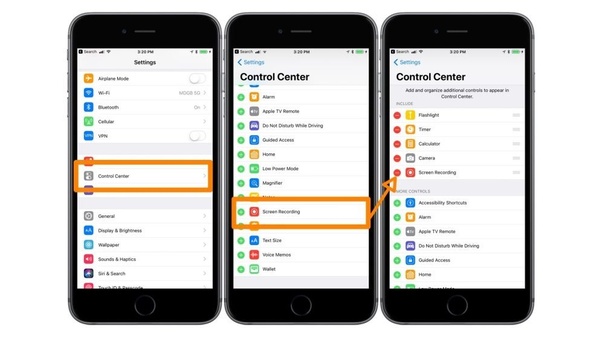
    Tap on Settings and go to Control Center

    Step 2
    Tap on Customize Controls, scroll down and look for Screen Recording right there and tap on the plus sign beside it.
    Please note that by default, the microphone is disabled.

    screen recording on iPhone

    SEE ALSO: How to Block and Unblock Friends on Facebook Easily

    (adsbygoogle = window.adsbygoogle || []).push({});

    Step 3

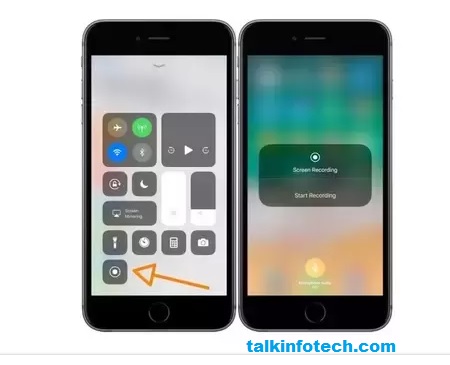
    Hence we have to turn the microphone on by pressing and holding down the round nob (see figure below) for a few seconds.

    screen recording on iPhone

    A small dialogue box pops up showing microphone symbol which by default is turned off. But you have to tap it so it can turn on

    Step 4
    Below on the appeared dialogue box is the Start Recording tab, if you press it, the phone will start recording automatically with both the screen activities and the audio.

    Usually, when it starts recording, a red bar shows at the topmost part of the phone screen indicating the screen recording is ongoing.

    You May Like This Also:  Comparison of iPhone 7 vs iPhone 8 (Differences that…
    We hope this was helpful. Or is there anything you feel we left out that will be helpful regarding screen recording on iPhone?

    Kindly drop us a comment.